Key Takeaways
- After a crash, relevant video may be on the camera’s local card, in the cloud as a selected event clip, in both places, or unavailable. Recording mode, event detection, power, storage health, connectivity, and service configuration all matter.
- Geosavi lists a 64GB microSD card and more than 50 hours of local footage for the Xirgo KP2; the Xirgo CP4S supports up to four cameras and SD storage up to 1TB. Those are hardware capabilities, not guarantees for every installation or recording setting.
- Confirm the event time and vehicle, look for an uploaded clip, and preserve the relevant local footage before routine recording can overwrite it. Verify the actual clip and its full time window rather than relying on an alert alone.
- FMCSA’s six-month HOS record rule does not create a blanket six-month camera-video retention period. Accident-register, discovery, insurer, contract, and state-law obligations are separate and fact-dependent.
- Keep an unedited copy, record how it was exported and who handled it, restrict access, and ask counsel about a preservation hold when a claim or litigation is reasonably anticipated. Video may provide context but does not decide fault or guarantee a claim outcome.
| Table of Contents |
|---|
| Footage Destination |
| Storage Survival Window |
| Prompt Response |
| Claims and Evidence |
| FMCSA Record Rules |
| KP2 vs CP4S |
| Before You Buy |
| FAQs |
Introduction
After an accident, the useful question is not only whether a camera was installed. Fleet staff need to know what was recorded, where it is stored, whether an event clip uploaded, and how long the relevant local and cloud copies will remain available.
Those answers vary by hardware, recording mode, camera placement, cellular service, account settings, and the event itself. A crash may not trigger the configured alert, and an alert does not prove that a complete clip reached the cloud. This guide explains a practical preservation process and separates Geosavi’s published device specifications from outcomes that must be checked in a particular account.
For hardware details, see Geosavi’s video telematics options and the linked Xirgo datasheets. Confirm service-plan retention and retrieval settings with Geosavi Support before an incident.
Where Does Your Footage Go the Moment an Accident Happens?
A configured camera may record continuously or in an event-based mode to local storage. Selected event data may also upload through cellular service. The two paths are related but not identical: local recording can continue while a vehicle is out of coverage, and cloud access depends on a successful upload and the account’s service settings.
Geosavi’s KP2 datasheet lists a 64GB microSD card, continuous/event/dual recording modes, and event video upload. Its published 50-plus-hour figure is a product specification, not a guaranteed incident-retrieval window. The CP4S datasheet lists up to four channels, an SD card up to 1TB, continuous/event/dual modes, and automatic event-data upload. Camera views and the actual card size depend on the installed configuration.
Neither device specification establishes that every crash will be detected, every second will upload, or an off-vehicle copy will exist before damage or power loss. Check the dashboard for the actual clip; if it is absent or incomplete, preserve the local device and storage media for review.
How Long Does Your Footage Stay Available After an Incident?
Local card footage can be overwritten as recording continues. The time available depends on card capacity, resolution, number of active channels, recording mode, usage, and device health. Geosavi advertises more than 50 hours on the KP2’s included 64GB card and CP4S support for cards up to 1TB, but neither figure guarantees a fixed number of days for a specific vehicle.
Cloud retention is a separate service setting. The KP2 manufacturer datasheet lists a standard GPS and event/video retention period, but a fleet should confirm what its Geosavi account stores, for how long, and whether clips can be locked or exported. Do not assume a cloud copy exists, is immutable, or remains available for the life of a claim. Confirm the relevant clip’s time window and export it promptly under the fleet’s incident procedure.
What Should Your Fleet Do Promptly After an Accident?
First attend to safety: seek emergency help, follow the carrier’s crash-reporting procedure, and do not disturb equipment when doing so would be unsafe. Ask the driver or responder for the vehicle identifier, location, and best available incident time, including the time zone. Do not treat a one-hour or 24-hour window as a universal legal deadline for video retrieval.
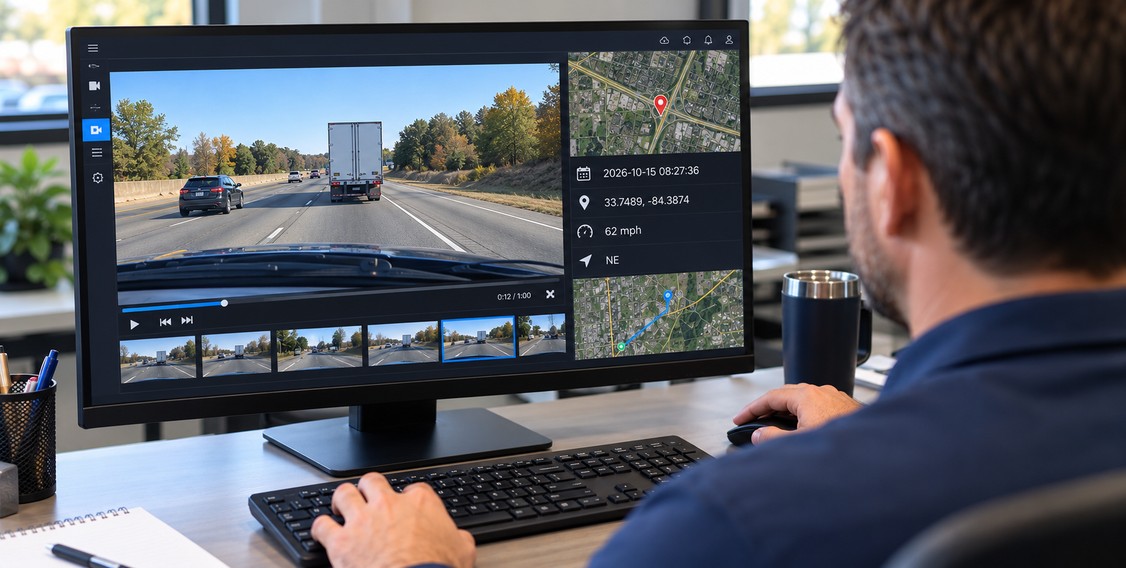
- Search the authorized dashboard for the vehicle and time. Verify that a playable clip covers the relevant period and note any gaps, not just that an alert appeared.
- If the clip is absent or partial, coordinate prompt local retrieval. Avoid resetting or reformatting the device or letting routine recording overwrite potentially relevant footage. Work with the tow yard or repair facility if it controls the vehicle.
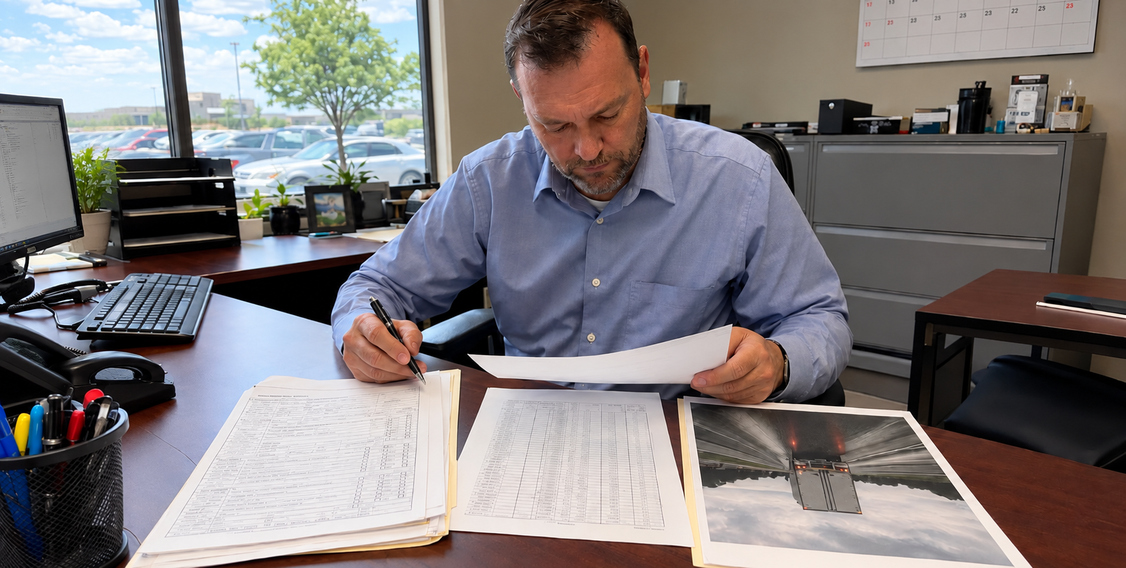
- Export an unedited copy with available timestamps and metadata. Record the source device/account, export method, date, person, and each transfer; restrict access and preserve the original where feasible. NIST’s digital-evidence guidance explains why integrity and chain-of-custody records matter.
- Notify the insurer and counsel under your policy. If a claim or litigation is reasonably anticipated, ask counsel what to preserve and whether to suspend routine deletion. The scope and duration depend on the matter and jurisdiction.
Keep related driver statements, dispatch records, and applicable HOS or inspection records in their own systems. Our ELD retention guide explains those separate obligations.
How Can Footage Help Review an Accident?
Video can help an insurer, investigator, or court understand a visible sequence of events, but a clip may be incomplete, obstructed, mistimed, or open to interpretation. It does not by itself establish speed, fault, driver attention, or liability. Compare the clip with statements, physical evidence, and other reliable records.
Road-facing, driver-facing, and side/rear cameras show different views only when those cameras were installed, powered, and recording. The KP2’s driver-facing camera is optional; the CP4S supports up to four cameras, not a guaranteed four-view installation. Preserve the original export and context before creating a short excerpt or still frame for review.
A clear clip may help resolve a disputed claim, but there is no dependable promise of driver exoneration, faster settlement, lower legal costs, or a specific insurance result. For a broader view of camera benefits and limits, see our video telematics safety guide.
What FMCSA Rules Apply to Your Records After an Accident?
49 CFR 390.15 requires covered motor carriers to maintain an accident register for three years and specified accident reports; it also addresses making accident-related records available in an investigation. It does not set a universal three-year camera-video retention period. 49 CFR 395.8(k) covers records of duty status and required supporting documents for six months from receipt; it does not automatically classify every dash-camera file as an HOS supporting document. Keep those rules separate from your video retention policy.
A driver vehicle inspection report is required when 49 CFR 396.11 applies. For most property-carrying operations, a no-defect post-trip DVIR is not required; reportable defects after a crash should still be documented and addressed under the applicable rule. The presence or absence of a DVIR does not determine whether footage must be preserved.
Video-preservation duties may arise from a claim, pending or reasonably anticipated litigation, a request, contract terms, or state law. Their scope and duration depend on the circumstances. A federal court’s discovery guidance describes the case-specific nature of preserving relevant electronic information; consult counsel for the matter at hand. Use access controls and a driver-facing camera policy that addresses notice, privacy, audio, authorized viewers, and deletion under applicable law.
How Do Our KP2 and CP4S Compare for Post-Accident Evidence?
These are published hardware capabilities, not promises that every view, alert, or cloud clip is included in a particular fleet configuration. See the Geosavi product page and confirm installed cameras, card, service, and retrieval settings.
| Capability | KP2 Fleet Outlook | CP4S Fleet Outlook + Driver + Side Views |
|---|---|---|
| Local storage | 64GB microSD, more than 50 hours before overwriting | Supports SD cards up to 1TB; actual overwrite time varies |
| Camera coverage | Road-facing standard; driver-facing via optional snap-on camera | Supports up to 4 cameras; installed views vary |
| Cloud upload | Event-video upload capability; verify successful upload | 4G/LTE event notification and upload capability |
| Remote access | Remote access when clip uploaded and account permits | Remote support/management capability; access depends on setup |
| Storage integrity | Standard SD card recording | SD error/corruption detection with remote support |
| Device durability | Standard camera housing | Compact, tamper-resistant, and secure design |
| Driver-facing evidence | Optional snap-on camera with AI distraction and fatigue detection | Optional compatible SVA050-A driver-facing view, when installed and recording |
| Full incident coverage | Road view plus optional driver view; verify clip and metadata | Up to four configured views; verify actual coverage and timestamps |
What Should You Ask Before Choosing a Video Telematics System?
What should my driver do at the scene immediately after an accident?
Start with safety: call emergency services when needed, secure the scene as directed, and follow the fleet’s accident-reporting procedure. When practical, tell dispatch the vehicle, location, and estimated time so staff can search the footage. Do not reset, remove, or alter a damaged camera without coordinating evidence preservation; safety and emergency instructions take priority.
Can we retrieve footage remotely if the truck is at a tow yard or repair facility?
Possibly. If an event clip uploaded successfully and the account permits access, authorized staff may retrieve it remotely even when the truck is elsewhere. The KP2 and CP4S support event upload, but a collision is not proof that a complete clip is in the cloud. If it is absent or incomplete, coordinate local device or SD-card retrieval with the facility holding the vehicle and preserve the original media.
What if the SD card was physically damaged or corrupted during the accident?
The CP4S datasheet lists SD error/corruption detection and remote support, but it does not promise that damaged footage can be repaired remotely. Check whether a complete cloud clip uploaded and preserve the device or card for qualified recovery if needed. Physical damage, interrupted power, or an upload failure can leave gaps in both sources.
Should we share footage directly with the other party’s insurance company right away?
Follow your insurer’s notice and disclosure instructions, any legal request or preservation obligation, and advice from counsel where a claim is disputed or injuries are involved. Do not alter or selectively delete the original. Voluntary sharing, required production, privacy restrictions, and timing depend on the facts and jurisdiction; there is no universal rule to share immediately or to wait for counsel in every case.
How do we confirm a clip uploaded successfully to the cloud after an incident?
Search the authorized dashboard by vehicle and incident time, then open the actual file and confirm its start, end, camera view, and playback. An alert or upload notification alone does not establish that the needed footage is complete. If no clip appears, check device status and connectivity and arrange local retrieval; ask support about the configured retry behavior rather than assuming an offline upload will arrive automatically.
What records should we keep alongside the footage for a complete post-accident file?
Preserve relevant video, driver and witness accounts, dispatch and location records, photographs, and applicable HOS or inspection records. An ELD records duty-status events; do not assume it contains a precise crash-time speed or a synchronized camera view. A DVIR is required only when the applicable inspection rule calls for one. Maintain the accident register and required reports separately. Ask counsel about preserving the broader file while a claim, request, or litigation is open; the HOS six-month rule is not a blanket retention period for video.
Can we order a replacement camera if the original was damaged in the accident?
Yes. Both our KP2 and CP4S packages are available through our Fleet Management Store. If the incident has led you to consider upgrading from single-channel to multi-channel coverage, our price calculator gives you a starting point for comparing system costs relative to your fleet size, and our team can walk you through configuration and ordering questions directly.
What if we cannot locate footage from a specific incident in our cloud dashboard?
Confirm the vehicle identifier, time zone, and a wider time window. Check for device or connectivity alerts and whether an event was detected. Depending on recording mode and storage health, relevant footage may remain on the local card even when no cloud event appears. Preserve the device before overwrite and contact Geosavi Support for configuration-specific retrieval help. A missing cloud clip does not prove that no video exists, and a local recording is not guaranteed either.
What Do Fleet Managers Ask Most About Post-Accident Footage?
Local Storage and Cloud Footage
Does event footage upload automatically or does someone need to trigger it manually?
The KP2 and CP4S support event-data upload, but whether a particular event is detected and successfully uploaded depends on configuration, connectivity, power, storage, and the event itself. The CP4S datasheet describes automatic upload of event data; it does not guarantee every crash clip is available within seconds. Verify the playable clip in the account and check local storage when it is missing or incomplete.
What happens to SD card footage if the truck returns to service before we retrieve it?
When a device continues recording in a rolling mode, older local footage may eventually be overwritten. The KP2’s advertised 50-plus-hour capacity and the CP4S’s maximum 1TB card support do not establish a 24-to-48-hour deadline for a particular vehicle. Preserve the relevant clip or card promptly, recording who removed or exported it, before routine operation can overwrite it.
How long does cloud footage stay available after it uploads?
Cloud retention periods vary by system configuration. Contact our support team before an incident occurs to confirm the retention window for your specific setup. Knowing that window in advance gives your team a clear timeframe to work within, rather than discovering the limits after footage has already been removed from the system.
Is SD footage protected if the device loses power during a crash?
Neither a supercapacitor nor tamper-resistant housing guarantees complete footage after power loss or impact. The device datasheets describe last-file/safe-shutdown features, while the CP4S also lists SD error detection. Actual availability depends on the recording state, damage, and whether an event uploaded before connectivity or power was lost. Check both sources and retain damaged media for qualified review.
What if our fleet regularly operates in areas with limited cellular coverage?
Local recording may continue while the powered device has healthy storage, but remote notifications and cloud access require connectivity. Do not assume either model will queue every event and upload it later; ask Geosavi Support how the installed service retries failed uploads and test the process on routes with weak coverage. Size the local card for the configured cameras and recording quality.
Can cloud footage be deleted after it has been uploaded?
Questions about footage deletion permissions, access controls, and retention management are specific to your account and system configuration. Contact our support team to understand your access controls before an incident occurs, so your team is clear on who can manage cloud footage and under what conditions.
Claims, Legal Use, and Driver Context
Can footage be used to dispute a police report that places our driver at fault?
A complete, authenticated clip may help an insurer or investigator reconsider an account of the crash. It does not automatically change a police report or decide legal fault. Preserve the full original footage and context, identify any gaps, and follow the applicable process for submitting additional evidence. Ask counsel how to challenge an official finding in the relevant jurisdiction.
Does footage speed up how quickly our insurance carrier handles a claim?
It may, when the footage is relevant, complete, and promptly available. A disputed claim can also take longer if the video is ambiguous or raises new questions. No camera or telematics system guarantees a faster decision, lower premium, or reduced legal expense. Provide the insurer with the original clip and reliable context under the policy’s claim procedures.
What if the footage shows our driver was at fault?
Preserve it. Footage that appears unfavorable can still be relevant to a claim or investigation, and deleting it can create additional problems. Review the full recording with the insurer and counsel where appropriate, avoid making a fault determination from a short segment alone, and use verified findings for coaching or corrective action. Do not promise that video will lower settlement costs in this situation.
Can the other party’s attorney request our footage through the legal process?
Potentially. Video may be requested in a claim, investigation, or lawsuit, and a duty to preserve relevant electronic information can arise when litigation is pending or reasonably anticipated. The scope, timing, and disclosure rules depend on the matter and jurisdiction. Ask counsel to identify relevant footage, suspend routine deletion where needed, and manage lawful production. Camera tamper resistance does not replace a documented chain of custody.
How does footage work alongside our ELD records in a post-accident review?
ELD data can provide duty-status and other recorded event context, but it is not automatically a frame-by-frame speed record of a crash. Match vehicle identifiers and timestamps carefully, account for clock or GPS differences, and preserve each system’s original export. Footage and ELD records can inform a review together without proving that either is complete or that their interpretation is beyond dispute. See our ELD records guide for the separate federal retention rules.
What is the difference between using footage in an insurance claim versus using it in court?
An insurer may use footage to evaluate a claim, while a court may require the parties to establish authenticity and address admissibility under the applicable rules. Neither setting guarantees a particular result. Preserve the original file and available metadata, document its source, export method, handlers, and transfers, and keep access limited. NIST’s preservation guidance describes sound digital-evidence practices; counsel can advise on the case-specific legal standard.
What Does Your Fleet Need to Know Before an Accident Happens?
Before a crash, confirm which cameras are installed, how they record, what event clips upload, the account’s retention period, who can export footage, and how a failed upload is handled. Train the incident-response team to check the actual clip and preserve the local source when needed. Set access, driver notice, audio, and deletion practices with privacy and employment counsel where appropriate.
After an incident, prioritize safety, preserve relevant footage and records, and document each export and transfer. Do not assume a clip exists, that the cloud is permanent, or that video alone determines fault. For configuration-specific questions about the KP2 and CP4S, contact Geosavi or call (800) 261-4361.